 Forma
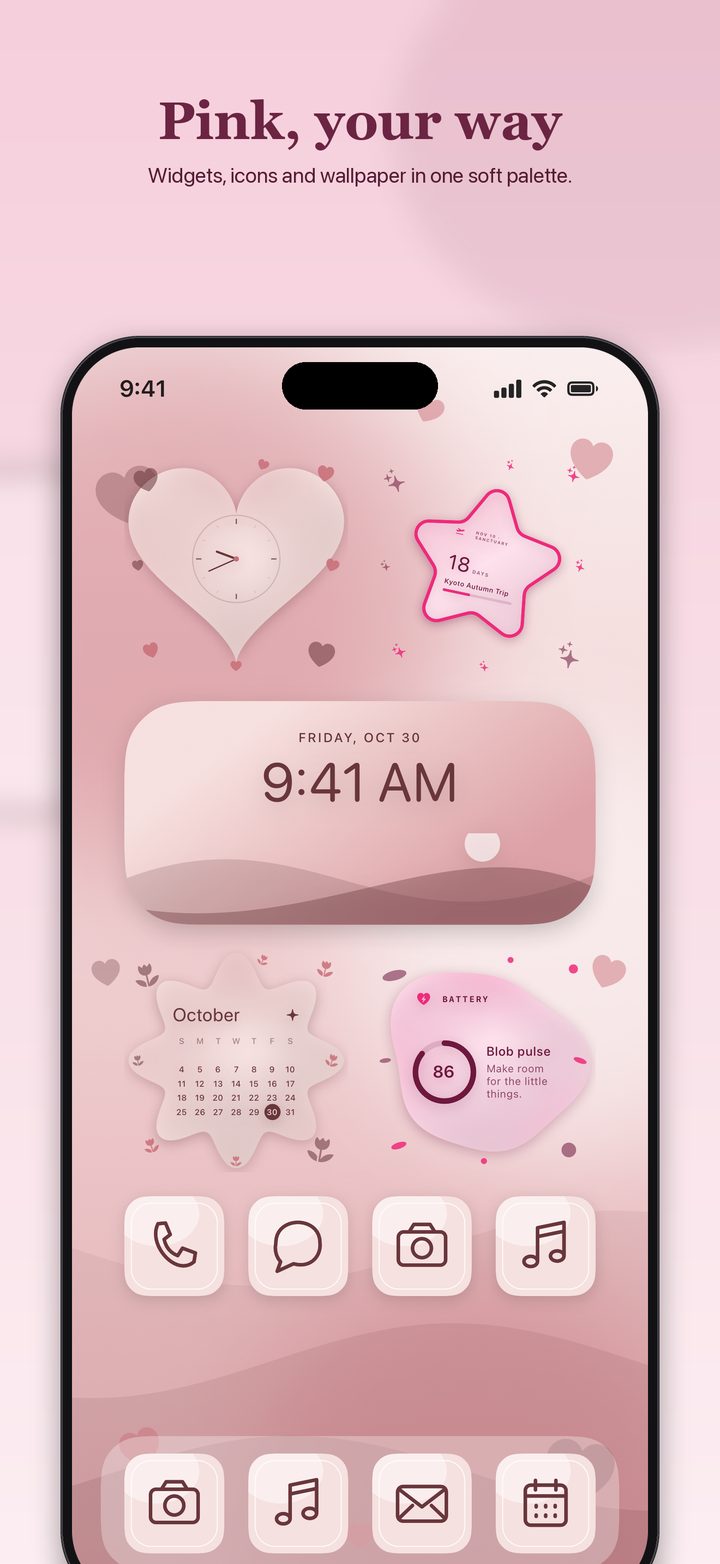
A widget is a live tile on the Home Screen, the Lock Screen, or Today View. Apple's support article of September 14, 2026 is the button-by-button version. The iPhone User Guide describes the same job with a couple of the controls drawn as icons instead of the word Edit. Both links are below. Use the article when you want the words, and the guide when the screen in your hand doesn't match a sentence on a web page.
Add one to the Home Screen
- 1Jiggle the Home Screen From the Home Screen, touch and hold a widget or an empty area until the apps jiggle.
- 2Tap Edit, then Add Widget Tap the Edit button in the upper-left corner, then tap Add Widget. Apple's iPhone User Guide describes the same moment as tapping the add control that appears once the icons jiggle, then Add Widget. The labeled buttons are the ones in the support article.
- 3Pick the app, the size, and add it Select a widget, choose a size, then tap Add Widget. The User Guide says to swipe through the size and style options before you tap Add Widget.
- 4Place it and tap Done Drag it where you want it, then tap Done.
- 5Edit what it shows Touch and hold the widget and tap Edit Widget. A Weather widget can change its city. A Forma widget is where you choose the design you saved. Forma's own page says to do that after you add the Forma widget.
Today View
Swipe right from the Home Screen or the Lock Screen. Touch and hold a widget or an empty area until the apps jiggle, tap Edit in the upper-left, tap Add Widget, pick one, swipe to an appearance, tap Add Widget, then Done. If Today View is missing while the phone is locked, Apple's guide says to open Settings, tap Face ID & Passcode (or Touch ID & Passcode on iPhone Duo and iPhone SE), and turn on Today View and Search under Allow Access When Locked.
Move one
Touch and hold the widget, tap Edit Home Screen, drag it, then tap Done. You can also drag it to another Home Screen page. The move guide says to drag toward the edge and wait for the next page, and to finish by tapping the background on an iPhone with Face ID or iPhone Duo, or the Home button on iPhone SE.
If the widget is Forma
Forma's support note on its own site matches Apple's Edit path, then adds the part only Forma knows: save a design in the app first. After the widget is on the Home Screen, touch and hold it, tap Edit Widget, and choose that design. Widgets in Forma's gallery show sample content, tagged SAMPLE, until you connect your own data. Calendar, Reminders, and Birthdays are the live ones, and the listing puts those on Forma Pro. The phone still decides how often a widget refreshes. A change can take a few minutes.
Lock Screen widgets are a different gesture. They are on the Lock Screen page. Stacking several widgets in one square is on the stack page.
Questions
How do I take a widget off?
Touch and hold the widget, tap Remove Widget, then tap Remove to confirm. That is the path in Apple's September 14, 2026 support article. Removing the widget does not delete the app.
Can I make a widget out of an app icon?
Yes. Touch and hold the app icon, then tap one of the size icons at the bottom of the menu. Not every app offers every size. Touch and hold the widget and tap the control Apple shows there to turn it back into an icon.
Sources
- Apple Support, How to add and edit widgets on your iPhone. Published September 14, 2026. Home Screen, Lock Screen, Today View, stacks, and remove.
- iPhone User Guide, Add, edit, and remove widgets. The same tasks, including turning an app icon into a widget and Today View while locked.
- iPhone User Guide, Move apps and widgets. Dragging to another page, and how you leave jiggle mode.
- Forma, on cognitoware.dev. Save a design, add the Forma widget, then Edit Widget. Sample content until data is connected.
Pages and prices were checked November 19, 2026. A store price can change, and a support page can be revised. The link is the record.