 Forma
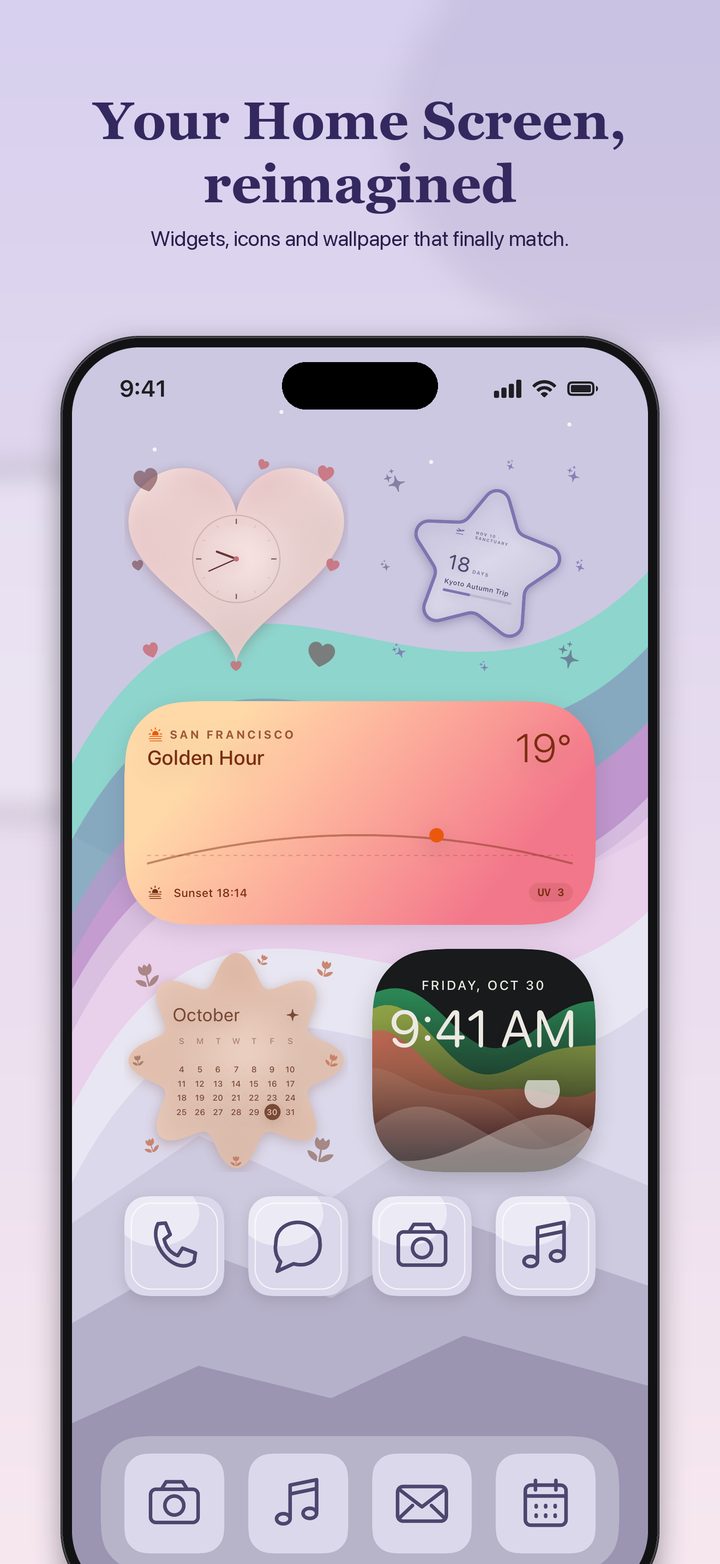
iOS will restyle the icons you already have. It will not, in any step Apple has published, take a PNG and pin it onto Safari. The two official paths are different, and mixing them up is how people end up with a shortcut that looks like an app and opens something else.
Restyle the icons you have
- 1Jiggle, then Customize Touch and hold the Home Screen background until the icons jiggle. Apple's User Guide then says to tap the edit control (it is drawn as an icon in the guide) and choose Customize.
- 2Pick a treatment Larger icons: the guide says the names disappear. Dark, or Auto if you want dark at night and light during the day. Clear makes the icons translucent, then you pick Light, Dark, or Auto. Tinted uses sliders for color and saturation, or the eyedropper on the wallpaper, then Light, Dark, or Auto.
- 3Leave the editor Leave the editor the way you leave jiggle mode. The move guide says to tap the background on an iPhone with Face ID or iPhone Duo, or press the Home button on iPhone SE.
The same Customize screen is where widgets pick up Dark, Clear, or Tinted. A tint sampled from the wallpaper is the fastest way to make a mixed set of app icons look related. It does not redraw the glyph inside the icon.
A photo icon, via Shortcuts
Apple's Shortcuts guide is the photo path:
- In the Shortcuts app, open a shortcut and open its details.
- Tap Add to Home Screen.
- Tap the icon. Take a photo, choose one from Photos, or choose a file.
- Rename it if you want, then tap Add.
The new icon runs that shortcut. If the shortcut's only job is to open an app, you still launched a shortcut. The guide does not say the original app icon is replaced, and it does not say the shortcut glyph is hidden. Don't describe this to someone as changing the app's icon.
Some apps ship their own alternate icons, chosen inside that app. Apple's Home Screen guide does not list them. If a toggle exists, it is that app's setting, not a system one.
What Forma does, and what it doesn't
The Forma listing says you can design widgets, wallpapers, and icons that match, and that collections include icons along with the widgets and the wallpaper. It does not say Forma replaces the icon of other companies' apps. Treat Forma's icons as art that belongs to Forma's own designs. Putting a picture on the Home Screen, if that is the goal, is still the Shortcut steps above.
Cleaning the grid around those icons, by removing apps to App Library and making folders, is on the Home Screen ideas page.
Questions
Can I upload a photo as the icon of Safari or Instagram?
Not from a system setting. Apple's customize guide changes the size and the color treatment of the icons you already have. It does not describe a photo upload for an App Store app. A photo is documented for a Shortcut you add to the Home Screen, and that icon opens the shortcut.
Do large icons remove the labels?
Yes. The User Guide says: in large size, the names of the apps disappear.
Sources
- iPhone User Guide, Customize apps and widgets. Large, Dark, Auto, Clear, and Tinted, including the eyedropper.
- Shortcuts User Guide, Add a shortcut to the Home Screen. Photo, file, or camera as the icon of a shortcut. The shortcut is what opens.
- iPhone User Guide, move apps and widgets. How you leave jiggle mode.
- Forma App Store listing. Icons are part of the matching sets. The listing does not say other apps' icons are replaced.
Pages and prices were checked November 19, 2026. A store price can change, and a support page can be revised. The link is the record.