 Forma
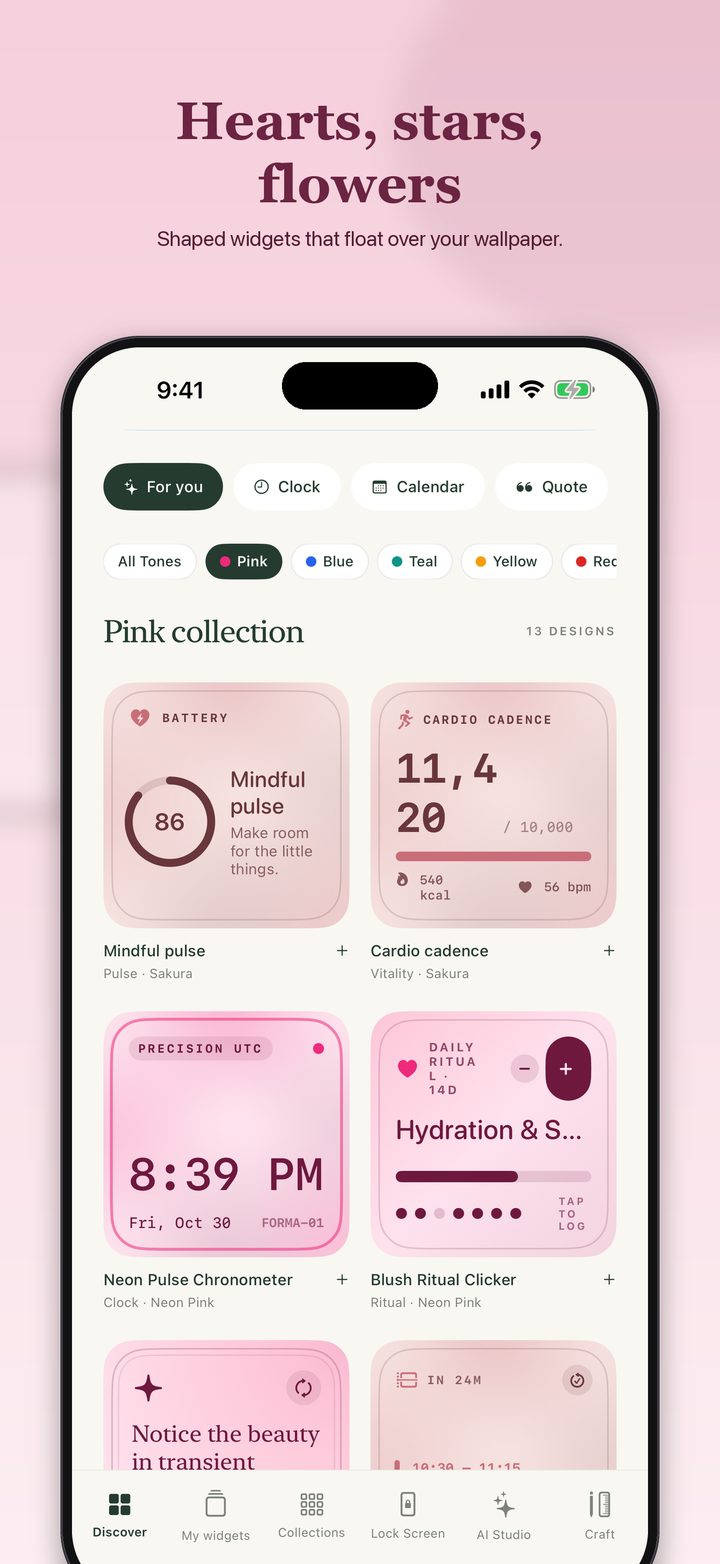
A stack puts more than one widget in the space of one. You swipe it, or you let the phone rotate it. Apple's September 14, 2026 article is the source for the steps and for the limit of 10. The add-a-widget page is the single-widget version of the same Edit button.
Make a stack
- 1Add a Smart Stack Touch and hold the Home Screen or Today View until the apps jiggle. Tap Edit in the upper-left, tap Add Widget, scroll down, select A Smart Stack, tap Add Widget, then Done.
- 2Or stack two widgets yourself While the apps jiggle, drag one widget onto another. Apple's article says you can stack up to 10 widgets. If a widget will not drop onto another, those two cannot share a stack. The article does not promise every combination works.
- 3Edit the stack Touch and hold the stack and tap Edit Stack. Drag to reorder. Turn Smart Rotate on or off. On iOS 15 or later, Widget Suggestions can be turned on from the same screen so apps you already use can appear in the stack. Tap Done.
What to put in one
A stack is useful when the widgets are the same size and you don't need all of them at once. Calendar in the morning, a reminder list at noon, and a photo or a shaped clock the rest of the day is the usual idea. Apple does not publish a recommended set. The phone's own Smart Stack is the set it will build for you.
Forma widgets are added like any other widget, then pointed at a saved design with Edit Widget. A shaped heart and a shaped star can sit in a stack if iOS lets you drop one on the other. The listing does not claim a special stack tool inside Forma. Live Calendar, Reminders, and Birthdays, which are the ones worth stacking if you want the day on the screen, are part of Forma Pro.
Widget Suggestions, on iOS 15 and later, can insert apps you already use. Turn it off if the stack keeps changing to something you didn't choose. That switch is in Edit Stack, next to Smart Rotate.
Questions
What is a Smart Stack?
Apple describes it as a pre-built set of widgets that rotates using things like the time, your location, and activity. The User Guide says a Smart Stack is the widget with dots next to it, and that you can swipe it to see the widgets inside. You need iOS 14 or later for stacks.
Does Smart Rotate keep one widget on screen?
No. Apple says that with Smart Rotate on, iOS shows relevant widgets through the day. Turn Smart Rotate off in Edit Stack if you want the stack to stay where you swiped it.
Sources
- Apple Support, widgets, the stack section. Smart Stack, your own stack, the limit of 10, Smart Rotate, and Widget Suggestions. iOS 14 or later for stacks. iOS 15 or later for Widget Suggestions. Published September 14, 2026.
- iPhone User Guide, widgets. A Smart Stack shows dots, and you swipe it.
- Forma. Edit Widget chooses the saved design. Live calendar data is part of Pro.
Pages and prices were checked November 19, 2026. A store price can change, and a support page can be revised. The link is the record.