 Forma
A Home Screen looks finished when the wallpaper, the icons, and the widgets share a color, and when the grid isn't full. The controls that do this are already on the phone. None of the ideas below need a second app. Forma is one way to build the widgets and the matching art if you want shapes instead of the system rectangles.
Start with the wallpaper
Pick the photo or the color first. Then use the eyedropper in the tint control so the icons take a color that is already in the picture. The customize guide is linked on the icons page.
One page, then App Library
Leave the apps you open on the first page. Remove the rest from the Home Screen. They stay in App Library. Hiding the extra pages brings App Library closer, which is the reason Apple gives for that control.
Folders with plain names
Drag one app onto another to make a folder, then Rename. A folder called Bank is easier to find later than a folder called Stuff. The folder guide says a folder can hold more than one page of apps.
Widgets instead of a row of icons
A calendar widget replaces four taps. Put it where your thumb already is. Stacks, up to 10, are how you keep a second and third widget without filling the page. That limit is Apple's, on the stack page.
Large icons, no names
The customize guide says that in the large size, the names of the apps disappear. That is the clean look a lot of screenshots are chasing. It also means you have to know the icons.
Pair the Lock Screen
When you finish a Lock Screen, Apple offers Set as Wallpaper Pair or Customize Home Screen. Use the pair if you want the same picture on both sides of the wake button. The Lock Screen page has the rest.
A palette, if you want one made for you
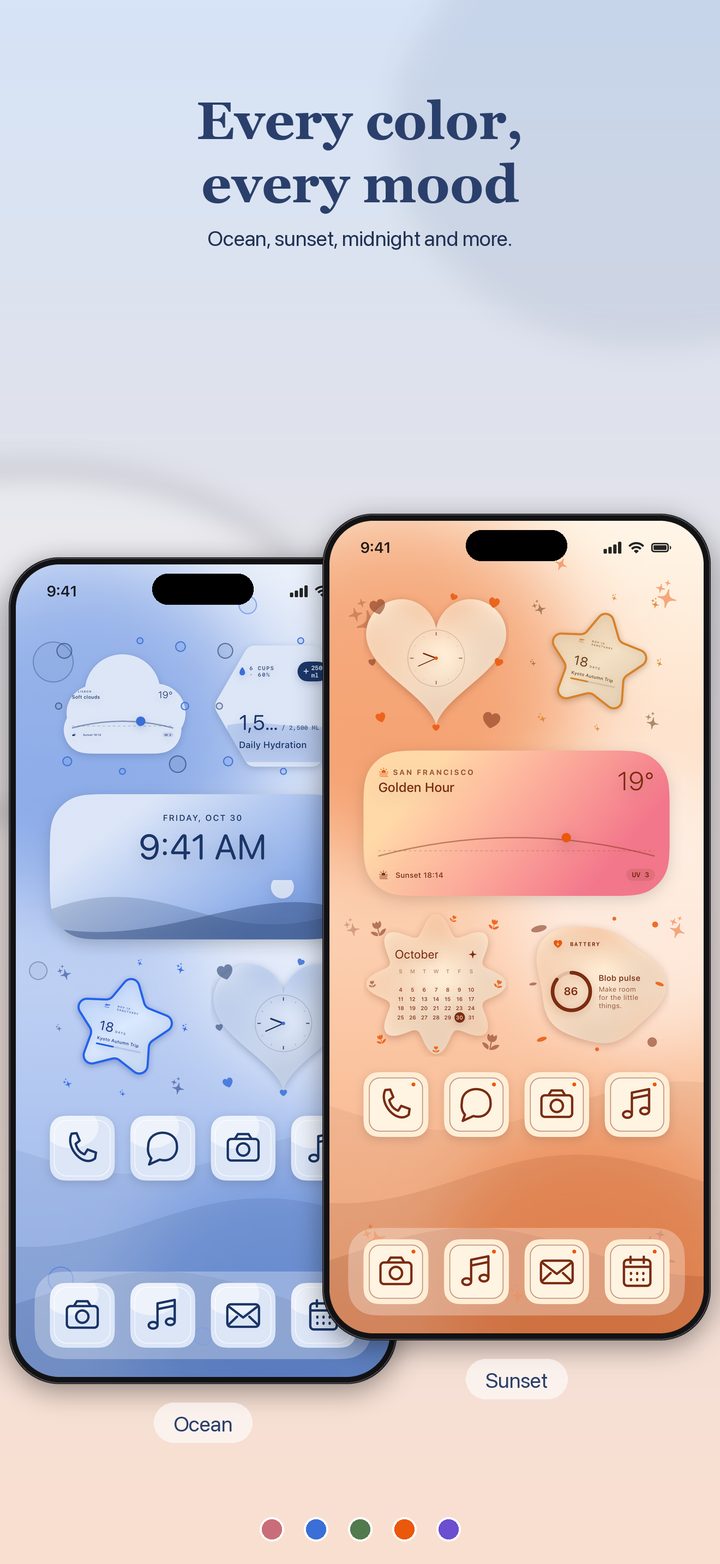
Forma's listing describes collections of widgets, wallpaper, and icons designed together, in Pink, Teal, Blue, Lilac, and more. Living backgrounds on Pro are aurora, starfields, waves, bokeh, and embers, plus gradients. The shaped widgets float with no box around them, which is the listing's phrase, so a photo wallpaper shows through the heart or the star. Free saves five widgets. The collections themselves are listed under Pro.
None of that replaces the Apple steps. You still add the widget from the jiggle menu, and you still tint or clear the icons from Customize. The widget page is the button path.
A layout that is easy to undo
If a page goes wrong, the move guide has Reset Home Screen Layout under Settings, General, Transfer or Reset iPhone, Reset. Apple says folders you created are removed and downloaded apps go back to alphabetical order after the apps that came with the phone. Reset is the exit. Use it on purpose.
Questions
How many Home Screen pages do I actually need?
Apple's App Library holds every app, including ones you removed from the Home Screen. You can hide pages: touch and hold the wallpaper, tap the dots, and clear the checkmark under a page. New downloads can go to App Library only, under Settings, Home Screen & App Library.
Will tinting icons change the picture inside them?
Apple's customize guide says Tinted applies a color and a saturation, with an eyedropper that can pick a color from the wallpaper, and then Light, Dark, or Auto. It does not say you can replace an app's artwork with a photo. A photo icon is a different feature, on a Shortcut, covered on the icons page.
Sources
- iPhone User Guide, App Library. Swipe left past the Home Screen pages. Hide pages from the dots. Settings, Home Screen & App Library, for where new apps land.
- iPhone User Guide, folders. Drag an app onto an app, then Rename.
- iPhone User Guide, customize apps and widgets. Large icons hide names. Tinted has an eyedropper.
- iPhone User Guide, custom Lock Screen. Set as Wallpaper Pair, or Customize Home Screen.
- iPhone User Guide, move and reset. Reset Home Screen Layout.
- Apple Support, widget stacks. Up to 10 widgets in a stack.
- Forma listing and site. Collections in Pink, Teal, Blue, Lilac, and more. Shapes with no box. Five free widgets.
Pages and prices were checked November 19, 2026. A store price can change, and a support page can be revised. The link is the record.