 Forma
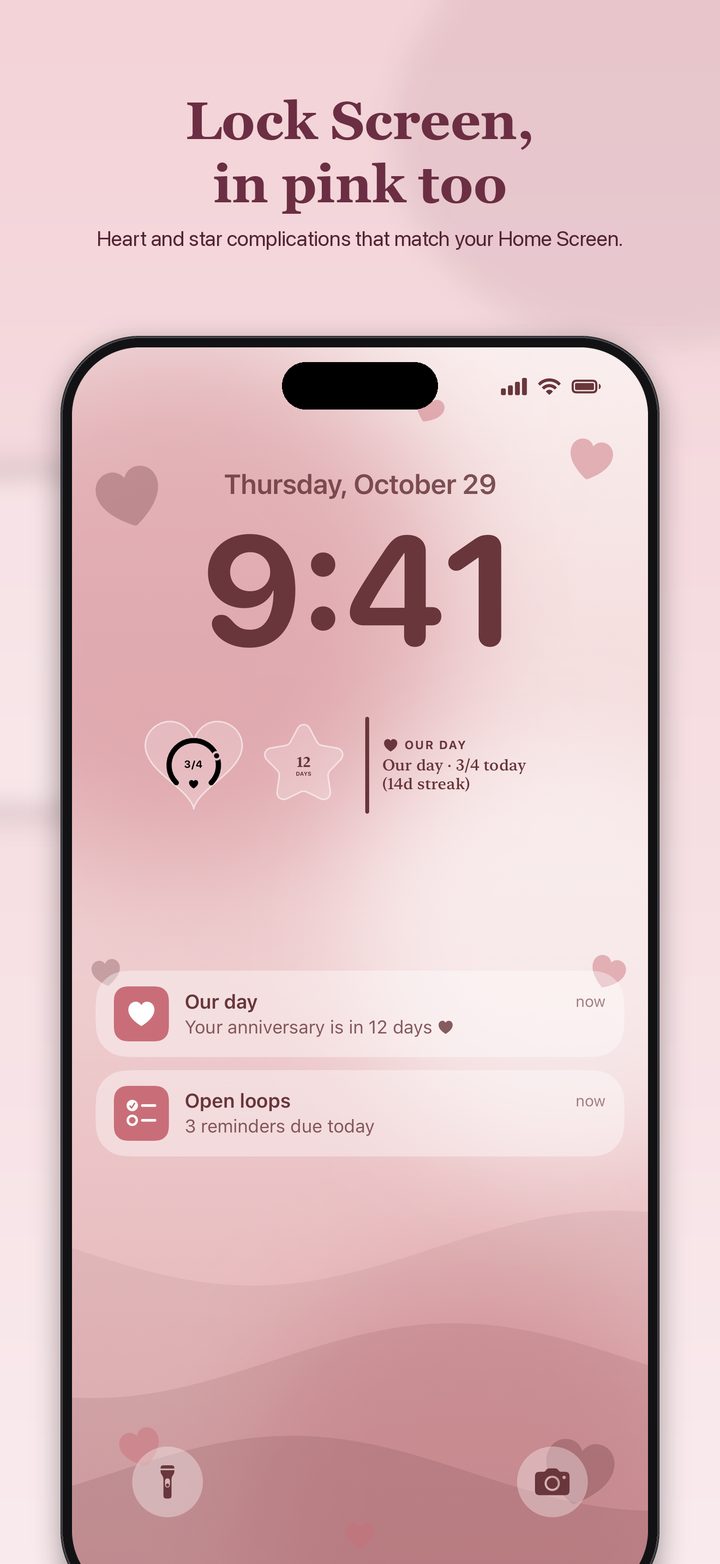
The Lock Screen editor is where the clock, the photo, the widgets, and the flashlight button all live. Apple's iPhone User Guide is the source for the gestures. Several of the buttons are drawn as icons, so this page names the action and links the guide instead of inventing a label the page doesn't print.
Build or edit one
- 1Make a new one, or edit the current one Touch and hold the Lock Screen. To make a new one, tap the add control Apple shows there. The guide says if you don't see it, touch and hold again and enter your passcode. To edit one you have, swipe to it and tap Customize.
- 2Choose a wallpaper For a new Lock Screen, tap a wallpaper option. On iPhone 12 and later the guide mentions a spatial scene. If Weather or Astronomy is missing, scroll and tap Get under the one you want.
- 3Change the clock, the widgets, and the photo Drag the bottom-right corner of the clock to change its height, then tap the time for the font and a more transparent look. Tap Add Widgets, or tap widgets that are already there. Pinch a photo to zoom, and drag with two fingers to move it. Swipe sideways for color filters. Depth Effect, when the photo supports it, is the layered look. The guide says the options depend on the wallpaper.
- 4Save it as a pair, or keep going Tap Add, Done, or the close control, then choose Set as Wallpaper Pair or Customize Home Screen.
Focus, and more than one screen
After a Focus exists, the guide says to touch and hold the Lock Screen, tap Focus near the bottom, pick one (the examples it gives are Do Not Disturb, Personal, Sleep, and Work), and confirm. Switching away from that Lock Screen switches the Focus too. That is worth knowing before you set up a work screen and then can't figure out why notifications changed.
Widgets, including Forma
Tap Add Widgets inside this same editor. The shorter, button-named version is on the Lock Screen widgets page. Forma's site says to tap the area below the time and choose Forma if that is the control in front of you, then pick a design. The design's shape and color are what the listing says you get on the Lock Screen.
StandBy and Now Playing are named in the Forma listing as studios in the app. Apple's Lock Screen chapter linked here does not include the StandBy setup steps, so this page does not borrow them from memory.
Questions
Can I keep more than one Lock Screen?
Yes. The User Guide says to create more than one, then touch and hold, swipe to the one you want, and tap it. Linking a Focus means that Lock Screen and that Focus switch together.
How do I delete one?
Touch and hold, swipe to it, swipe up, tap the delete control, then tap Delete This Wallpaper. That is the User Guide's path.
Sources
- iPhone User Guide, Create a custom Lock Screen. New and existing screens, clock, widgets, photo, Depth Effect, wallpaper pair, Focus, switching, and delete.
- Apple Support, Lock Screen widgets. iOS 16 or later, Add Widgets, Remove, Done. Published September 14, 2026.
- Forma. The area below the time, and Lock Screen widgets that follow the design. StandBy is named in the listing, not given a button path here.
Pages and prices were checked November 19, 2026. A store price can change, and a support page can be revised. The link is the record.